What Can It Do?
Kokuchi Kun is a Discord bot that schedules VRChat group announcements from Discord. Send a message in the designated channel and the bot posts your announcement to VRChat at the specified time.
This page walks you through the entire process with screenshots.
Time zone
All dates and times are assumed to be in JST (Japan Standard Time, UTC+9).
Announcement Workflow
1. Submit your request
Mention the bot in the announcement channel and describe your announcement in natural language.
Include:
- Announcement title (used for the post)
- Post time in JST (when to post)
- Event start and end times in JST (used for the calendar)
- Event name (used for the calendar)
No special formatting is required. Japanese and English both work.
Example
@kokuchi-kun
Post date: January 1, 2025 18:00

Announcement title: "Let's Play" Event Announcement

Announcement details:

"Let's Play" will be held from 20:00 to 21:00 on January 1, 2025!
Come join us for some fun!
Feel free to join or leave at any time.
Desktop mode and spectator participation are also welcome.
How to join: ......
Requirements/capacity: ......
2. Bot acknowledges, admin approves
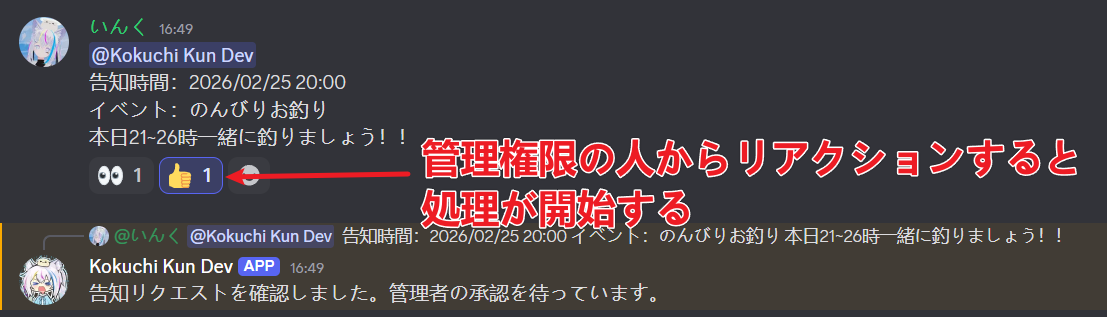
The bot reacts with 👀 to confirm it received your request. An admin then adds a 👍 reaction to approve it.
Key points
- 👀 means the bot has received your request
- Only members with the admin role can add 👍
- Your announcement is not scheduled until it is approved
3. Booking confirmed
Once approved, the bot uses AI to parse the date, time, title, and content, then displays a booking confirmation embed.
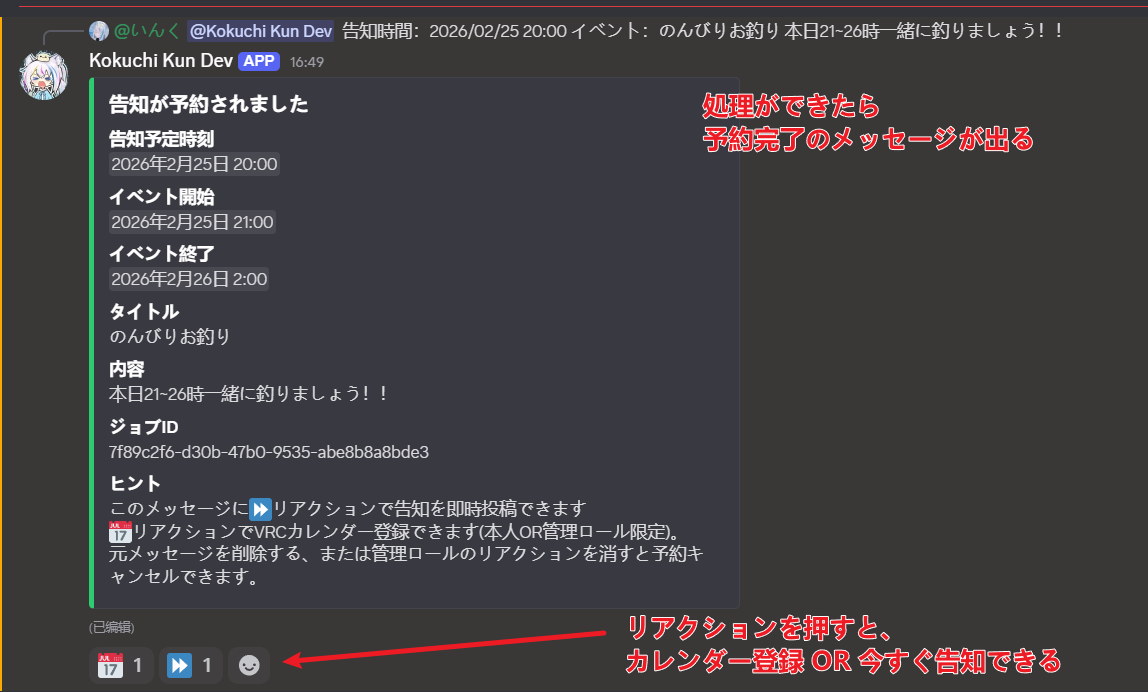
The embed includes:
- Post time — when the announcement will be posted to VRChat
- Event start and end times in JST — used if a calendar creation is requested
- Title — extracted by AI
- Content — the announcement text
- Job ID — used for cancellation
Reactions available on the confirmation embed:
| Reaction | Effect |
|---|---|
| ⏩ | Post the announcement immediately instead of waiting |
| 📅 | Create a VRChat group calendar event |
WARNING
Only the original requester or an admin can use ⏩ and 📅.
4. Posted to VRChat
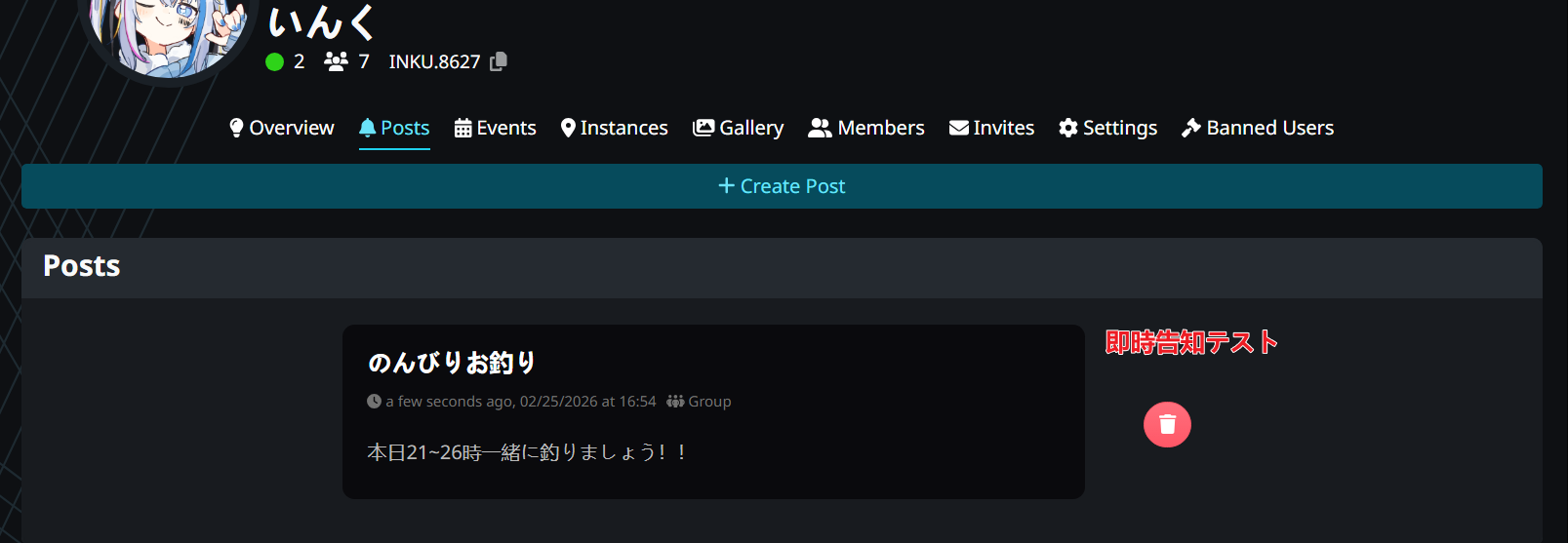
At the scheduled time, the bot automatically posts the announcement to the VRChat group.
5. Calendar event (optional)
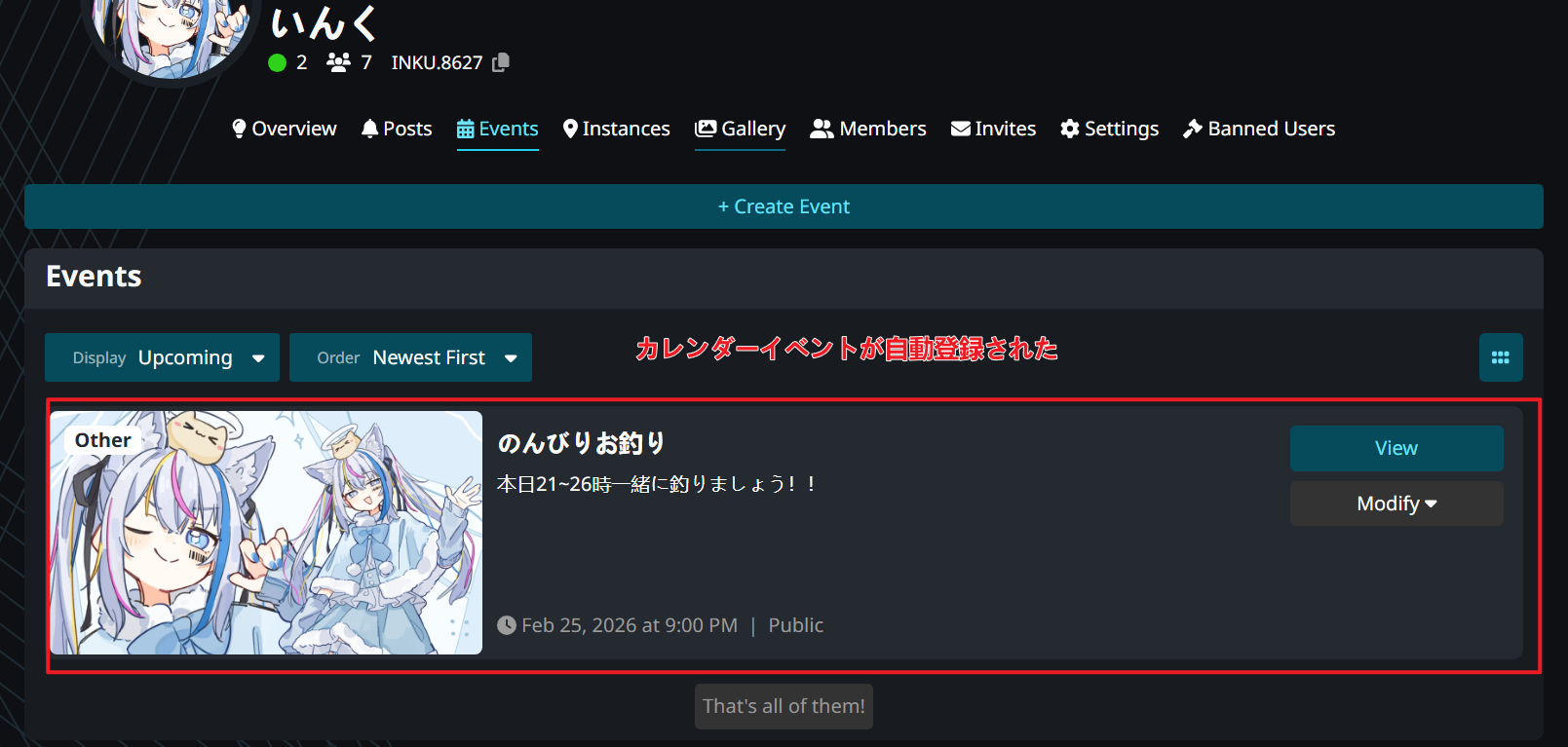
React with 📅 on the booking confirmation embed to create a VRChat group calendar event.
TIP
Calendar event creation requires both a start time and end time in your original request. Removing the 📅 reaction will also delete the calendar event.
Editing and Re-approving
If you notice an error in the announcement after it has been approved (wrong date, time, content, etc.), you can fix it without resubmitting:
- Cancel the current booking (see below)
- Edit the original request message in Discord to correct the mistake
- Have an admin add 👍 again to re-approve
The bot will re-process the edited message with AI, schedule a new booking, and display a fresh confirmation embed. The re-approved announcement works exactly like a new one — you can use ⏩, 📅, or cancel it again.
TIP
This is the recommended way to fix mistakes. You don't need to delete and resubmit — just cancel, edit, and re-approve.
Cancellation
To cancel a scheduled announcement, use any of these methods:
| Method | How |
|---|---|
| Delete the original message | Delete your request message in Discord |
| Remove 👍 | Admin removes the approval reaction |
| Use a command | Run /cancel or !cancel <job_id> |

INFO
If a calendar event was created, it is automatically deleted when the announcement is cancelled.
Learn more
- Reactions Reference — what each reaction does
- Commands — available slash and prefix commands
- FAQ — troubleshooting common issues